Work & organize

balenaEtcher
Write operating-system images to SD cards and USB drives with a simple desktop app.
Release notes / v2.1.9
Released 2026-10-22. Snapshot from the included release data, not a live check.
Updates Electron to 44.9.1, etcher-util to Node.js 24 and native addon builds on Windows.
Read the full release notes on GitHub ↗Available on these platforms
Choose the correct OS/architecture download. Windows installer ISOs need handling that Etcher does not provide.
Compatibility details and official sources
Official availability checked 2026-11-15. Availability is not feature parity. The recorded release and license refer to the linked source project; separate clients can differ. No install or compatibility test was run.
Before you install
An image writer, with an irreversible target choice.
- What does it need?
- Choose the correct OS/architecture download. Windows installer ISOs need handling that Etcher does not provide.
- Where is my data?
- The selected image is written to the selected removable drive. The app has anonymous usage collection enabled by default with an opt-out.
- What will I maintain?
- Keep the app current, verify images at their source and back up the target before every write.
Advice and funding routes source-checked November 15, 2026. Researched, not an install or restore test. Installation source ↗ · Report a correction
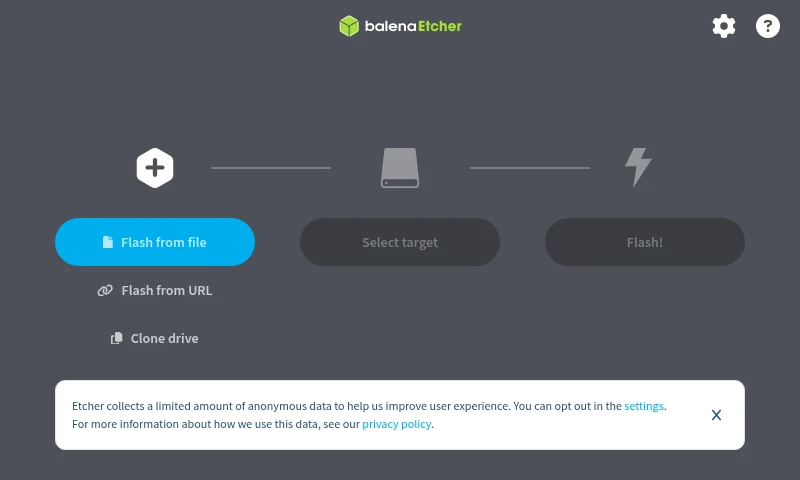
balenaEtcher writes an image file to an SD card or USB drive, then validates
the written result. It is a graphical alternative to carefully composing a
dd command, useful for preparing a Raspberry Pi card or Linux installer.
The app runs on Linux, macOS and Windows.
It writes images rather than adapting them. A Windows installer ISO needs special handling that Etcher does not provide, and Etcher does not add persistent storage to a Linux live image. The app also collects anonymous usage data by default; its settings provide an opt-out. Open source does not mean no telemetry.
Quick start
Researched from the project’s download page, release assets and user documentation on November 15, 2026.
Linux, macOS and Windows
Download the matching build from the official site or GitHub releases. Choose the correct operating system and architecture. The current Linux release provides a portable ZIP plus Debian and RPM packages; do not follow an old AppImage command without checking the current assets.
For a Linux portable build, extract the ZIP and launch balena-etcher
inside the extracted directory. On macOS, open the matching DMG and follow
the normal app installation. On Windows, run the installer from the release.
Check the matching release’s SHA256SUMS file before running a download.
Do not select a target drive until you have checked its model and capacity and backed up anything you need from it. Etcher replaces the drive’s contents.
Linux, macOS and Windows · Write verified operating-system images to removable media. Paste into your AI assistant. It may only be able to guide you. Review changes before running anything.
Researched from the project's documentation. Checked 2026-11-15. No AI account or connection is needed here.
Read or copy the prompt manually
First use
- Download the operating-system image from its publisher and verify that publisher’s checksum or signature.
- Choose Flash from file and select the image.
- Choose Select target. Check the exact removable drive, not only its drive letter; unplug unrelated removable disks if that makes it clearer.
- Only after confirming the target can be erased, choose Flash! and allow the write and validation to finish before ejecting it.
Validation checks the write, not whether the image publisher is trustworthy or whether your hardware supports the operating system.
Why it’s listed
A small, inspectable tool for an easy-to-get-wrong task. The clear image, target and write sequence helps, but it does not replace checking the disk or having a backup. balena’s separate fleet-management services are not required to use Etcher.
Documentation
Tags: Utilities
Want help setting this up? Ask FOSSadmin ↗