Work & organize
Ventoy
Make one USB drive that boots many ISO, WIM, IMG, VHD and EFI files from a menu.
Release notes / v1.1.18
Released 2026-10-09. Snapshot from the included release data, not a live check.
Experimental support for SteamOS recovery images. Improve the Linux remount feature so the ISO partition is mountable out of the box on mainstream desktop distros. Fix the Windows/WinPE secure boot version check failure. Fix Fedora 45 beta boot issue.
Read the full release notes on GitHub ↗Available on these platforms
These labels describe the host used to prepare a bootable USB, not every operating system an ISO can boot. Installing Ventoy can erase the selected drive. The page does not assert a native macOS installer.
Compatibility details and official sources
Official availability checked 2026-11-12. Availability is not feature parity. The recorded release and license refer to the linked source project; separate clients can differ. No install or compatibility test was run.
Before you install
One stick, many installers.
- What does Ventoy actually do?
- You install Ventoy onto a USB stick once, then copy ISO files onto it like regular files. Boot the stick and pick from a menu of everything it holds - no re-imaging between systems.
- What gets erased?
- The target USB stick, completely, during setup. The computers you later boot are untouched until you choose something inside a booted installer.
- Which computers boot it?
- Most PCs with UEFI or legacy BIOS; Secure Boot needs the enrollment step the documentation describes. ISOs can be copied on from Linux, Windows or macOS.
Advice and funding routes source-checked November 12, 2026. Researched, not an install or restore test. Installation source ↗ · Report a correction
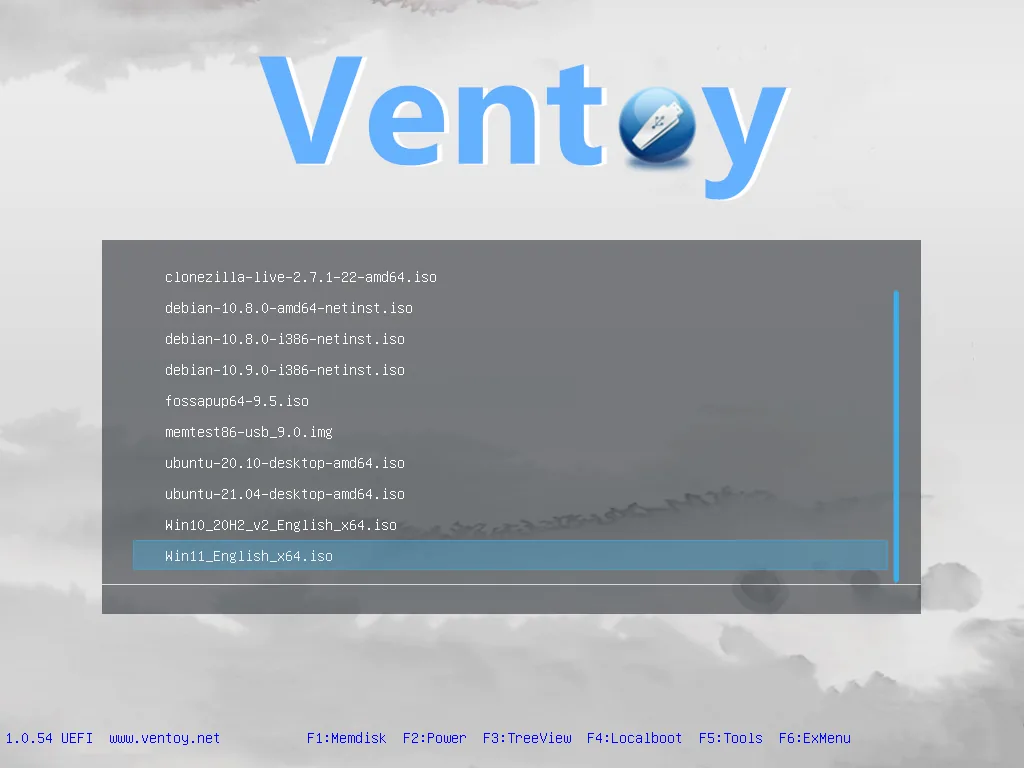

Ventoy writes a small boot loader to a USB drive once. After that you copy ISO and other image files onto the drive and pick one from a boot menu. There is no need to reformat the drive for each image. It supports legacy BIOS and UEFI, and x86, ARM64 and MIPS64EL machines.
License and what is bundled
Ventoy’s own code is GPLv3 or later, per the project’s license file. It also builds on other open source projects such as GRUB, EDK2, BusyBox and 7-Zip. Their code keeps their own licenses, and some are included as prebuilt binaries. The project lists every bundled binary, with build steps or an upstream download in its blob list and build guide. We have not rebuilt the release downloads or compared their hashes.
Quick start
Checked against the project’s own documentation on November 9, 2026. We have not run these installs ourselves. Commands are copied from the project’s pages, or from Flathub and Homebrew where the section says so.
Linux
Installing Ventoy erases the USB drive. Identify the drive carefully first, for example with lsblk, and make sure it is the USB stick and not an internal disk.
Download ventoy-x.x.xx-linux.tar.gz, extract it, and run as root:
sudo sh Ventoy2Disk.sh -i /dev/sdX-i installs and fails if Ventoy is already on the disk. -u updates an existing install and keeps your files. The guide also describes a GTK or Qt app and a web interface for Linux.
Windows
Installing Ventoy erases the USB drive it is installed to. Back up anything on it first and double-check which drive you pick.
Per the install guide: download ventoy-x.x.xx-windows.zip from the project, unzip it, run Ventoy2Disk.exe, select your USB device and click Install. By default it lists only USB drives, to prevent mistakes.
macOS
We found no macOS installer in the project’s install guide, which covers Windows and Linux. Prepare the drive on one of those.
NixOS
nixpkgs packages the Ventoy tools as ventoy (source: pkgs/by-name/ve/ventoy/package.nix):
environment.systemPackages = [ pkgs.ventoy ];Rebuild with sudo nixos-rebuild switch, then run sudo ventoy-web for the browser interface or sudo ventoy for the command-line tool. Write only to a USB stick you mean to erase.
First steps
- After install, the large partition on the stick looks like a normal drive. Copy ISO files (or WIM, IMG, VHD, EFI files) onto it. You don’t need to reformat it for each image.
- Boot a computer from the USB stick. Ventoy shows a menu of the files you copied. Pick one to boot it.
- To update Ventoy on the same stick later, use the update option in the installer, not a fresh install.
The project recommends checking the SHA-256 hash of the download.
Linux · Create a multiboot USB stick. Paste into your AI assistant. It may only be able to guide you. Review changes before running anything.
Researched, not run by the Index. Checked 2026-11-12. No AI account or connection is needed here.
Read or copy the prompt manually
Windows · Create a multiboot USB stick. Paste into your AI assistant. It may only be able to guide you. Review changes before running anything.
Researched, not run by the Index. Checked 2026-11-12. No AI account or connection is needed here.
Read or copy the prompt manually
macOS · Create a multiboot USB stick. Paste into your AI assistant. It may only be able to guide you. Review changes before running anything.
Researched, not run by the Index. Checked 2026-11-12. No AI account or connection is needed here.
Read or copy the prompt manually
NixOS · Create a multiboot USB stick. Paste into your AI assistant. It may only be able to guide you. Review changes before running anything.
Researched, not run by the Index. Checked 2026-11-12. No AI account or connection is needed here.
Read or copy the prompt manually
Tags: Utilities