Media & photos
GIMP
Raster image editor for photo retouching, composition and illustration.
Version checked by hand on 2026-11-10. Snapshot from the included release data, not a live check.
No release-notes excerpt is recorded here.
Open the project's release source ↗Available on these platforms
Check the official download page for the supported OS version and processor architecture. A desktop download is not evidence of a native phone app.
Compatibility details and official sources
Official availability checked 2026-11-12. Availability is not feature parity. The recorded release and license refer to the linked source project; separate clients can differ. No install or compatibility test was run.
Before you install
The veteran image editor, free as in freedom.
- Which package?
- AppImage, Flatpak or Snap on Linux (the Flathub listing is publisher-verified); installers for Windows and macOS.
- GIMP, Krita or darktable?
- GIMP covers retouching, compositing and painting. Krita leans toward painting, darktable toward RAW photos - pick per job.
- How do files work?
- Work saves as .xcf to keep layers; export to PNG or JPEG for sharing. Install plug-ins only from sources you trust.
Advice and funding routes source-checked November 12, 2026. Researched, not an install or restore test. Installation source ↗ · Report a correction
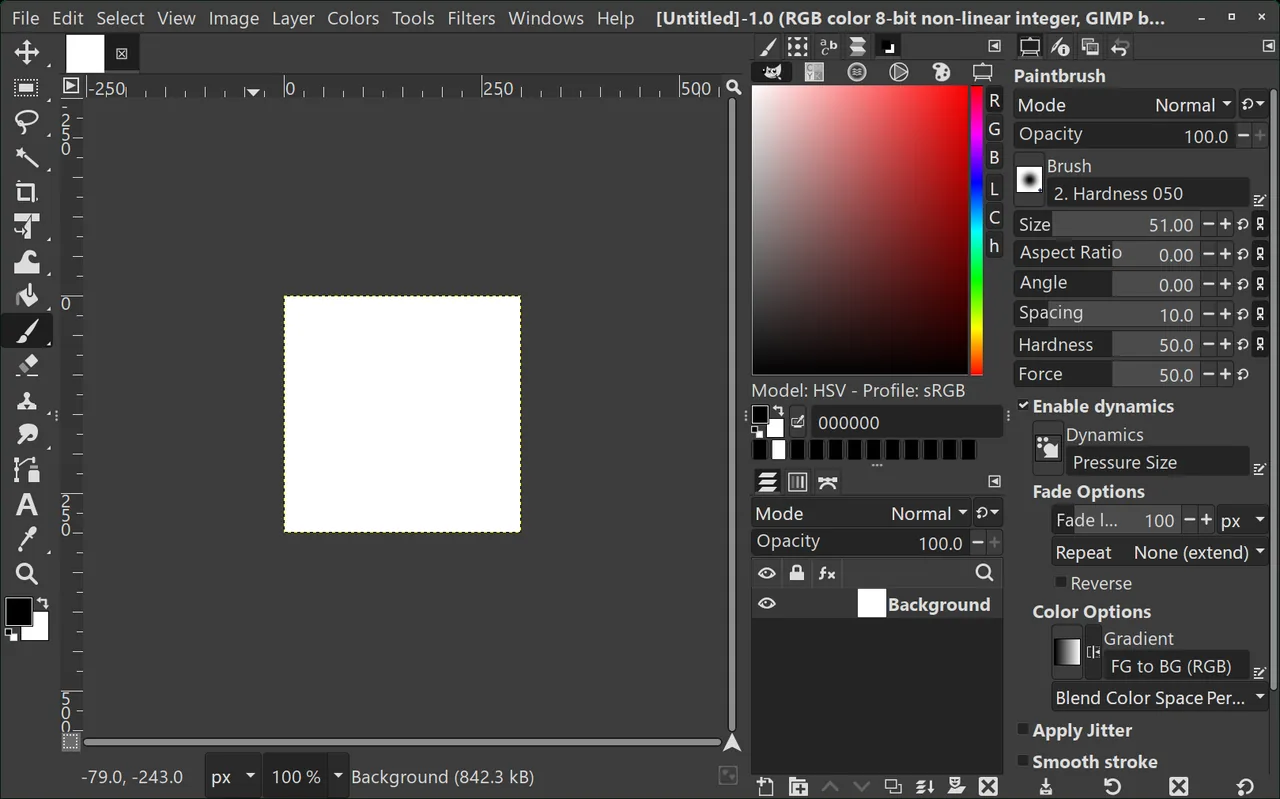

GIMP is a long-running image editor for retouching photos, compositing and painting. It works with layers, masks and many file formats, and can be extended with plug-ins.
It overlaps with Krita, which is built more for digital painting, and darktable, which is built for processing raw photos.
The project’s own FAQ says GIMP is distributed under the GNU GPL version 3 and later.
Quick start
Checked against the project’s own documentation on November 9, 2026. We have not run these installs ourselves. Commands are copied from the project’s pages, or from Flathub and Homebrew where the section says so.
Linux
The download page lists an AppImage, a Flatpak and a Snap for x86_64 and Aarch64. The Flathub listing is verified by its publisher:
flatpak install flathub org.gimp.GIMPWindows and macOS
Installers are on gimp.org/downloads.
Homebrew has a cask for it. That is Homebrew’s packaging, not the project’s own:
brew install --cask gimpNixOS
nixpkgs packages GIMP as gimp (source: pkgs/applications/graphics/gimp/default.nix):
environment.systemPackages = [ pkgs.gimp ];Rebuild with sudo nixos-rebuild switch, then launch GIMP from the application menu.
First steps
- Open an image with File > Open (Ctrl+O), or start a blank one with File > New (Ctrl+N).
- Edit it with the toolbox on the left.
- File > Save (Ctrl+S) writes GIMP’s own
.xcfformat, which keeps layers. To produce a PNG or JPEG use File > Export As (Shift+Ctrl+E).
Sources: GIMP’s manual on opening images and its keyboard reference.
Linux · Raster image editor for photo retouching, composition and illustration. Paste into your AI assistant. It may only be able to guide you. Review changes before running anything.
Researched, not run by the Index. Checked 2026-11-12. No AI account or connection is needed here.
Read or copy the prompt manually
Windows and macOS · Raster image editor for photo retouching, composition and illustration. Paste into your AI assistant. It may only be able to guide you. Review changes before running anything.
Researched, not run by the Index. Checked 2026-11-12. No AI account or connection is needed here.
Read or copy the prompt manually
NixOS · Raster image editor for photo retouching, composition and illustration. Paste into your AI assistant. It may only be able to guide you. Review changes before running anything.
Researched, not run by the Index. Checked 2026-11-12. No AI account or connection is needed here.
Read or copy the prompt manually
Tags: Creative